
Mixing & routing
Channel strips, sends, buses, the routing matrix, snapshots, and automation.
Unreleased September 29 working-tree additions after app commit 52cbd7c: right-click a track Solo button, use its context menu, or run Toggle Solo Safe on Selected Tracks. A slashed Solo indicator marks a track that remains audible when other tracks are soloed. Solo Safe does not activate global solo and explicit Mute still wins. Enable it on required buses/returns as well; it does not make other source tracks audible. The setting supports Undo/Redo, project save/load, detached mixer synchronization and master rendering. Isolated stems retain their existing isolation policy.
Mixing happens in the track headers, the mixer panel docked below the arrangement, and automation lanes on the timeline. This page follows the signal from a channel strip through sends and buses to the master, then covers groups, snapshots, automation, and metering. Shortcuts are from the default OpenStudio keyboard profile; Ctrl is Cmd on macOS.
The mixer panel
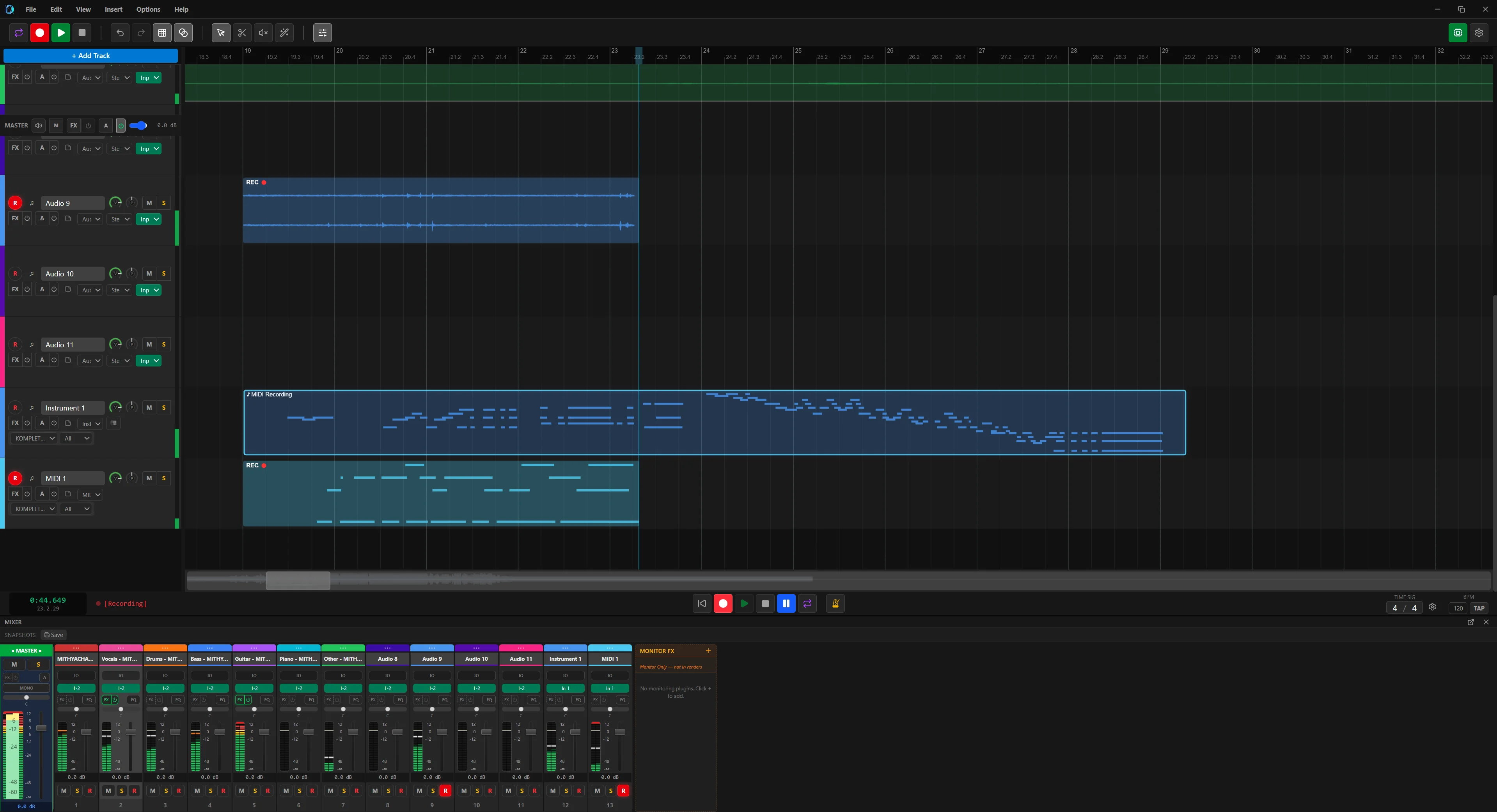
Toggle the mixer with Ctrl+M, View → Show Mixer, or the mixer icon in the main toolbar. It can also be detached into its own window. The Master strip is fixed on the left behind a divider; track strips follow in track order and can be reordered by dragging.

Each strip shows, top to bottom: track name and colour, a group badge, an FX indicator with the effect count (click to open the chain), the sends section, the pan knob, the volume fader with a +12 to -inf dB scale and a gain staging readout, a peak meter updated at 10 Hz, the S, M, and R buttons, and a phase invert toggle. A channel strip EQ modal also exists.
The master strip controls the final output volume and pan, shows the master peak meter, and has its own FX chain. It includes master mute; it has no track solo or record arm buttons. View → Show Master Track in TCP also shows it in the track control panel.
Volume, pan, solo, and mute
- Volume runs from -60 dB to +12 dB. Drag the fader or the track header knob; double-click the fader to reset to 0 dB.
- Pan runs from L100 through C to R100 with the selected pan law; equal-power is the default.
- Mute silences the track output, including soloed and Solo Safe tracks. When any track is soloed, tracks that are neither soloed nor Solo Safe are silenced. Several tracks can be soloed at once.
- Solo and mute can be linked across tracks through a track group.
Sends, buses, and groups
A send copies a track's signal to a bus track: a shared reverb, a delay return, or parallel compression.
- Create a bus with Insert → New Bus/Group Track.
- On the source track, click the sends area of the channel strip or use its context menu, and pick the bus as the destination.
- Set the send level (0.0 to 1.0). Send pan and phase are available per send.
- Choose Pre-fader (send level ignores the track fader) or Post-fader (send follows it).
- Add effects to the bus. Its output feeds the master.
Sends can be enabled and disabled individually. If you already have the source tracks selected, Insert → Create Bus from Selected Tracks makes the bus and adds a send from each selected track in one step.
Track groups, VCA faders, and freeze
A track group links parameters so that moving one member moves them all. Select the tracks with Ctrl+Click or Shift+Click, right-click, and choose Create Group from Selected. The group gets a colour shown on headers and strips. Linked parameters are volume (relative offsets kept), pan, mute, solo, record arm, and FX bypass, adjustable in the group settings. Membership, removal, and deletion live in the channel strip context menu.
VCA-style grouping controls the volume of several tracks from one fader without creating a submix bus; the linked tracks move proportionally and keep their relative levels.
Freezing renders a track's FX chain to a temporary audio file so the plugins stop using CPU. Right-click the track and choose Freeze Track; a frozen indicator appears on the header. Unfreeze Track restores live processing. Lua has openstudio.freezeTrack and openstudio.unfreezeTrack.
Mixer snapshots and gain staging
Snapshots save and recall track volumes, pans, mutes, and solos. Click Save in the snapshots toolbar at the top of the mixer and name it. Click a snapshot button to recall it (undoable), or the trash icon to delete it. Use them to A/B two balances, keep several mix passes, or store reference levels.
Hover the gain readout to see the active clip gain, track fader, master gain, and their sum. These are gain settings, not measured audio levels at each stage.
Routing matrix and signal flow
View → Routing Matrix shows every route between tracks, buses, and the master in one grid. A track routing modal is also available; output channel selection and channel count are set per track. Sidechain routing into plugins is supported. Processing order on a track:
Audio input -> Input FX -> Track FX -> Fader / Pan -> Track output
                                 -> pre-fader send
                                               -> post-fader send
Input FX are pre-fader, so fader automation does not affect them; track insert FX are also pre-fader. The master receives tracks and buses routed to it. Chains and plugins are covered in Plugins & scanning.
Automation
The Monitor FX picker includes built-in effects such as EQ, Gain Phase, Reverb and NAM Rack alongside installed effect plugins. Instruments are excluded from this listening-only chain.
The development checkout supports track volume, pan, width, mute and trim; instrument/bus pre-FX controls; MIDI velocity, pitch bend, pressure and CC; send level/pan/mute; master volume/pan/mute/trim; and eligible input, track, instrument, master and monitor FX parameters. Open the envelope panel to select targets. Monitor FX affect listening only and are excluded from export. These automation and FX-drag changes are unshipped working-tree changes reviewed October 6 on top of app commit 52cbd7c; Windows Debug checks do not establish macOS/Linux or release qualification.
- Click on the lane to add a point; click and drag to draw several.
- Drag existing points to change their time or value.
- Select points and press
Deleteto remove them, or right-click the lane and choose Clear Automation to clear the parameter.
| Mode | Behaviour |
|---|---|
| Read | Automation plays back; manual changes are temporary. |
| Write | Arms controls for capture while playback or recording runs. Enabling it also enables Read; switching Write off leaves Read on. |
| Touch | Records only while you hold a control, then reverts to the existing curve. |
| Latch | Like Touch, but keeps writing the last value after release until the transport stops. |
| Touch/Latch | Track or master volume follows Touch; other eligible controls follow Latch. |
| Cross-Over | After release, keeps writing; retouch and cross the original curve to return to Read. With no crossing it writes until Stop. |
| Overwrite | Writes armed lanes continuously across the traversed range. |
Use track R/W buttons and the envelope panel's Write selector. Write behavior is a project setting; track/master R/W gates remain independent. The Cubase keyboard profile uses F6 for this panel, Alt/Option+R for all-track Read and Alt/Option+W for all-track Write. Master has separate R/W controls. Options → Move Envelopes with Items decides whether points follow a moved clip. Visible shows a lane independently of Read; Show last touched reveals the last eligible plugin control. Touch return supports immediate release or a 100 ms–5 s ramp to an existing continuous curve. Automation Safe protects a plugin's eligible parameters from recording while retaining Read playback. These settings and monitor FX state are saved with the project. A write pass is one undoable edit. Stop halts audio immediately, then allows open built-in editors up to 1.5 seconds to deliver their final queued edits. If an editor fails to finish, a warning asks you to check the last envelope value before saving.
Native VST3 editor changes, including isolated plugins, and eligible free-plugin controls feed the writer. The fallback instrument exposes 12 scalar/choice controls, and eligible JSFX numeric/choice sliders have stable host IDs; scripts report recordable edits with slider_automate(). CLAP values, gestures and flush are integrated and protocol-tested, but vendor CLAP editors remain unqualified. Parameter rescans refresh metadata and compatible JSFX/CLAP targets retain their lanes; removed or changed targets retain inert points for review. Isolated changes to parameter IDs, automation meaning or audio-bus layout require a worker reload; display-name changes within an unchanged contract refresh normally. Model/IR files, calibration, MIDI mapping, inactive banks and processing configuration remain excluded. VST3/CLAP Read uses SDK sample offsets where supported, including isolated VST3 transport. Output events retain SDK offsets when supplied; ordinary GUI edits use estimated native timestamps and other controls retain block/control-rate delivery. This does not make every mouse gesture sample accurate. Pitch Correct automation concerns its realtime FX; the graphical Pitch Editor modifies the clip's working audio copy.
AmpliTube 5 exposes sixteen assignable DAW parameter slots and bypass. Assign the desired amp or pedal knob in AmpliTube's Automation panel, then select its DAW slot in OpenStudio. Kontakt libraries likewise need host-automation assignments for controls they do not expose automatically; Komplete Kontrol supplies its mapped controls. The installed Kontakt 7/8 layouts exceed the Windows Separate process limits and are rejected in that mode; normal in-app host-parameter Read and JUCE gesture capture passed on empty instances in both FX chains. Loaded libraries and physical vendor-editor controls remain unqualified.
Continuous lanes use straight segments; discrete controls use stair steps and retain their value until the next point. Known choices snap during point editing. Plugin lanes retain parameter names, units and choices; compatible generic labels refresh without replacing custom labels. Plugin tooltips request the host's formatted value; unknown formatting falls back to an explicitly normalized percentage.
Eligible native and detached plugin-editor controls update a Punched or AutoJoined parameter even when ordinary Write is off; other parameters remain in Read. Stop retains the final queued built-in editor value after Read resumes. If a master/monitor edit cannot capture its resulting state for Undo, OpenStudio restores the previous chain, envelopes and Safe protection. Failed restoration blocks Save. Native FX changes requested during offline export or Freeze wait for the transaction while the window continues processing input. These are October 6 development changes, not a released-build qualification.
Select a lane in the current track or master envelope panel, stop transport and expand Envelope range tools. Trim range offsets normalized values, Fill range sets a value over the timeline time selection, and Thin lane reduces continuous points with a bounded vertical error (0–5% of range). Preview edit shows original/proposed curves without changing playback; Apply edit commits one undoable change. Boundary guards preserve values outside the selection.
Realtime Trim
Expand Realtime Trim in the track or master envelope panel. Select volume or a track send with Trim target. Its −60 to +12 dB offset preserves the base curve; send Trim multiplies the linear send level and also works pre-fader. Stopped changes adjust the saved manual offset. Arm Trim records separate Trim lanes while other envelopes remain in Read. Stop restores manual offsets and completes one undoable pass. Freeze Trim, while stopped with both lanes in Read, combines the curves and clears Trim. It retains separate curves when the result exceeds the range or point limit. Send coalescing preserves the curved product within 0.00001 linear gain. Choose Coalesce Trim while stopped: Manually, After each pass (merge at Stop within the pass's one Undo), or On leaving Trim (merge when disarming while stopped). Policy and manual offsets survive save/reopen; old projects default to manual and 0 dB send Trim. These are October 6 development changes, not a released feature claim.
Audible Preview and Capture
Select an eligible audio/FX lane, disarm Write/Trim and expand Audible Preview & Capture. Audition selected envelope holds a value independently of the curve; adjust Preview and add selected lanes on the same owner. Capture values, then stop, select a time range and Commit captured range for one undoable fill. Cancel Preview restores Read/manual values and retains capture; Discard capture clears it. During playback, Punch Preview writes only auditioned controls until Stop or End Punch, without changing the ordinary Write arm. Safe, Read, lock and target changes end an invalid Punch. It cannot begin during audio recording. One owner can preview up to 64 audio/FX controls; MIDI-controller targets are excluded. Closing, saving, snapshots and export restore auditioned values and finish an active Punch. The pass and its boundary commands share one Undo. Preview/capture are temporary.
Expand Writing & AutoJoin for Write to start, Write to end and AutoJoin latched controls. During transport, boundary commands fill only controls already writing, between the playhead and zero or the last project clip/envelope point. Enable AutoJoin while stopped: after a Latch/Touch-Latch or Punch pass, start before its actual stop point to read the curve until that point, then resume its held values at the native sample boundary. Touch does not rejoin. A touched pending control or changed curve/target/protection invalidates that entry. Playback and recording starts are supported; a loop must contain the join point. The enabled setting is saved, but remembered values are temporary. Up to 128 controls can rejoin. These workflows are implemented in the development checkout; cross-platform and physical vendor-control qualification remains pending.
Stopped knob edits are saved as plugin state. Removing an FX removes its lanes; undo restores the plugin, state, lanes and recording protection. Reordering retains lane ownership. Master/monitor FX use persistent instance identities. Their Undo/Redo suspends old envelope routes and resolves saved SDK identities against fresh parameter schemas before Read resumes. Changed controls retain inactive envelopes. Rollback resolves the current stage's SDK identities again before Read resumes. If plugin state or Automation Safe protection cannot be established during rollback, Save is blocked until the original project is reopened. Failed FX loads retain identities, saved state and inert lanes. Stop transport and retry after making the plugin available; successful restoration reattaches compatible targets as an undoable change. Incompatible targets remain unavailable. Saved track/input MIDI Learn controls follow their original FX when missing plugins compress the live chain; unavailable controls survive Save/reopen with their FX settings. Retry preserves CC assignments made while an FX was unavailable. New saves include host parameter identity and meaning where available; legacy mappings use their saved parameter index. Track/input FX, dedicated instruments and master/monitor Automation Safe controls save stable contracts, even without an envelope. Compatible parameter reordering preserves protection. Incompatible protected track/input effects remain unavailable; incompatible protected instruments or restored stages stop project restoration and block Save. Retry recovery preserves protection through Undo/Redo. MIDI Learn restoration verifies native readback. Failed snapshots or incomplete restoration stop saving over the previous project. Track-FX Undo/Redo waits for native operations in order and discards queued work from a replaced project. A CLAP request to clear host references archives old lanes and requires a new lane; Undo cannot reattach cleared references. Clear-all also removes matching MIDI Learn mappings. Rejected saved state is reported, and a missing plugin identity stops saving instead of shifting state onto another slot.
October 6 Windows development checks corrected an exposed AmpliTube parameter resetting after export. Its first cold-instance guitar export still differs from later exports despite preserved controls. Repeated wet output for that installed plugin is not qualified; this is not a claim about every vendor plugin or preset.
Metering panels
Track strips and the master strip have peak meters. View → Metering lists Loudness Meter and Phase Correlation as unavailable; there is no standalone Spectrum Analyzer panel in the current workspace.
Peak meters show level, not integrated loudness or phase correlation. Use a suitable metering plugin when you need those measurements.